

ToolsMay 13, 2025
Connect n8n with Facebook Messenger API via Webhook: A Comprehensive Guide 2025
Automating communication on messaging platforms has become an essential need for modern businesses. …
With Zoho Campaigns, creating an email marketing strategy becomes straightforward, but beginners may find it overwhelming and time-consuming. Don’t worry—this article provides a step-by-step guide to mastering Zoho Campaigns efficiently.
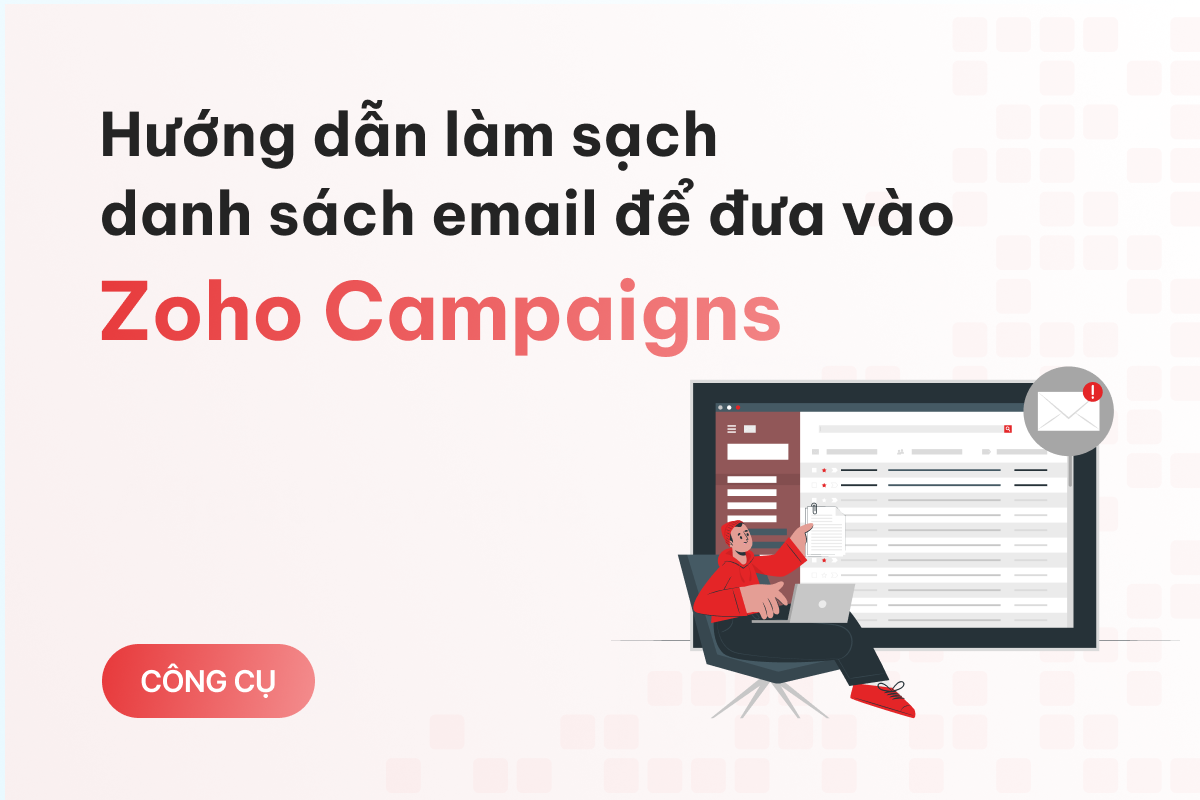
A common mistake among new Zoho Campaigns users is immediately syncing data from other platforms, such as Zoho CRM, without cleaning it first.
However, not all data is 100% accurate. For example, some users may have changed their email addresses or phone numbers, and outdated information leads to failed deliveries. Similarly, typos in email addresses can cause errors when sending campaigns.
Invalid or bounced emails increase your failure rate, which can lead email providers (like Google or Yahoo) to flag you as unreliable. This could result in your emails being marked as spam or, worse, your account being blacklisted.
Additionally, a clean email list ensures only valid addresses are included, boosting open and click-through rates, thereby improving your campaign’s success.

Key takeaway: Cleaning your email list prevents blacklisting and enhances campaign performance.
One effective tool for cleaning email lists is Clearout.io, which is user-friendly, affordable, and offers a free trial. However, it doesn’t support personal email accounts, so you’ll need a business email to use it.
Below is a step-by-step guide to cleaning your email list in Zoho CRM using Clearout.io and syncing it with Zoho Campaigns.
Log in to Zoho CRM → Open the "Contacts" module → Click "Actions" and select "Export Contacts".

On the next screen, under "Fields", click "Choose Fields" and select Last Name and Email (add ID if needed).
Click "Export" to download the file.

Log in to Clearout.io → Go to "Email Verifier" → Click "Add List".

Upload the exported file by clicking "Browse File".

Clearout.io will categorize emails into groups: valid, invalid, catch-all, or unknown.
Download the results file after verification.
Log in to Zoho CRM → Go to Setup → Navigate to Customization > Modules and Fields.

Add two custom picklist fields:
Ensure these fields are added to both the Leads and Contacts modules.

Go to the "Contacts" module → Click "Create Contact" → Select "Import Contacts".

Upload the verified file from Clearout.io and review the data for accuracy.
Log in to Zoho Campaigns → Go to Contacts > Sync → Open "Sync Services" and select "New Sync".

Follow the standard synchronization steps:
Select the module (e.g., Contacts), email list, and Subscription Type ("Marketing").

Map fields appropriately.
Click "Initiate" to start the sync.

Cleaning your email list not only helps you avoid technical issues but also enhances the quality and effectiveness of your campaigns in Zoho Campaigns. The steps outlined above are simple and won’t take much of your time!

[EmbedSoftware ids="47"]
Automating communication on messaging platforms has become an essential need for modern businesses. …

In this era of digitalization and automation, optimizing workflows is one of the key factors that h…
Do you dream of a virtual assistant that can automate everything from data collection to customer in…
We see AI as an investment — not a cost — for optimizing operations, marketing, sales, and customer support. But the right investment needs a roadmap, not trend-chasing. First 30-minute call is on us. No sales pitch. Just two founders talking about your business.