

ToolsFeb 8, 2025
4 brilliant ways to boost website traffic with Zoho CRM Plus
Zoho CRM Plus offers an all-in-one solution for increasing website traffic through social media opti…
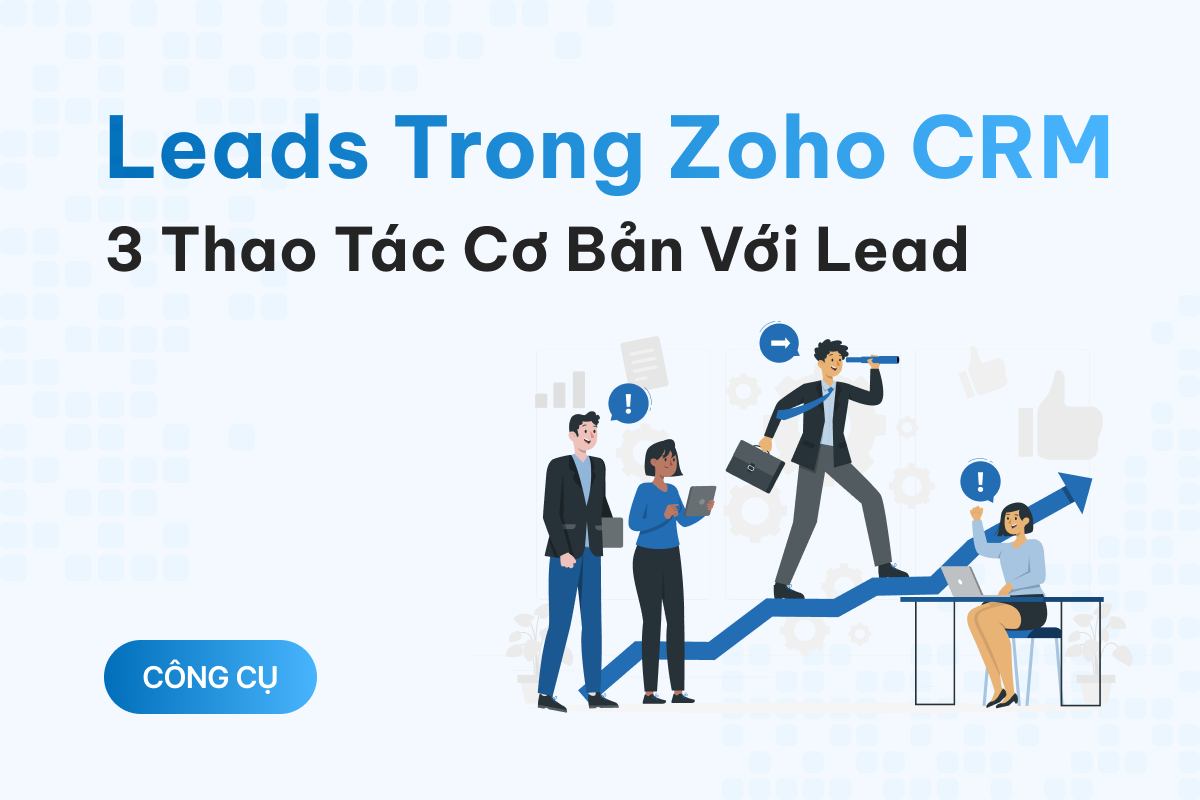
“Leads” is simply the plural form of “lead.” In Zoho CRM, this term refers to potential customers—individuals or organizations interested in or in need of the products/services offered by a business.
Leads are the first module in Zoho CRM’s menu. This module helps you manage all relevant information, such as name, age, phone number, and contact details.

This information can be gathered from various sources, such as registration forms, online marketing campaigns, trade shows, seminars, advertisements, or by importing data from Excel files or other platforms.
Each organization has its own approach to acquiring and managing leads, but the basic process and actions in Zoho CRM remain the same.
Generating and tracking leads is a crucial step in using Zoho CRM. Follow these steps to create a lead:
Click on Leads in the top menu of Zoho CRM → Select Create Lead to continue.

When entering lead information in Zoho CRM, make sure to fill in all required fields. The three most important fields typically include:

Note: If the required fields are not filled, you will not be able to save the lead in Zoho CRM.
In addition to these fields, you can add extra information such as email, phone number, address, and website. You can even upload an avatar in the settings to optimize lead management and customer engagement.
Once all information is entered, click Save (top right) to store the lead's details.

You can edit lead details at any time. To do so, follow these steps:
Click on Leads in the top menu of Zoho CRM. This will display a list of all managed leads.

Each lead has a corresponding row of information. Hover over the lead you want to edit.

Click on the three-dot icon that appears on the left side.

Select Edit to modify the lead’s information.
After making changes, click Save to update the details.
When a lead meets the necessary conditions, it can be moved to the next stage of the sales process. This means the lead can be converted into a contact, account, and deal.
To convert a lead, follow these steps:

Zoho CRM will automatically process the information and create:
If you want to create a new deal based on the lead, select Create a new deal before finalizing the conversion.
Finally, click Convert to complete the process.

Note: Once a lead is converted, the action cannot be undone, so proceed carefully.
Hopefully, this guide has helped you understand what leads are and how to perform three basic actions with leads in Zoho CRM.

[EmbedSoftware ids="33"]
Zoho CRM Plus offers an all-in-one solution for increasing website traffic through social media opti…
Accounts are an important module in Zoho CRM and are commonly used in many CRM platforms. This artic…
Contacts are a key module in Zoho CRM, but many users may not fully grasp their role or how to use t…
We see AI as an investment — not a cost — for optimizing operations, marketing, sales, and customer support. But the right investment needs a roadmap, not trend-chasing. First 30-minute call is on us. No sales pitch. Just two founders talking about your business.